First, download the what3words app to your phone.
Step 1. Open the app store on your phone.
- iPhone: the blue icon with a white A, called App Store.

- Android phone: the coloured triangle icon, called Play Store.

Step 2. Tap the search box (a magnifying glass, usually at the bottom or top).
Step 3. Type what3words and tap Search.
Step 4. Find the app with a red square containing three slashes (///). Tap Get (iPhone) or Install (Android).

Step 5. Wait a minute. When it finishes, tap to Open. The app is free to use.
Second, locate the grave
Step 6. The first time, the app may ask a few questions. Tap Allow or While using the app if it asks to use your location. This helps the map show where you are when you’re in the burial ground and makes it easier to find the grave.
You don’t need to make an account to use what3words. The app is free to use. You don’t need to pay for a ‘Pro’ account to search for locations.
Tap the ‘X’ at the top of the screen to remove the sign-up screen.
Step 7. Tap the Search bar at the top of the screen (next to the magnifying glass). It then says "search for any what3word address" or similar.
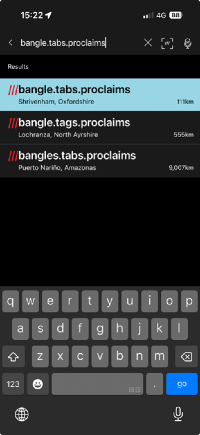
Step 8. Type the three words we’ve given you into the search bar, with a full stop between each word, like this:
table.lamp.chair
Type them exactly as you were given them. Spelling matters.
Step 9. Tap the recognisable location suggestion that appears underneath, or tap the “go” or “search” key on your keyboard. The suggested location may show as “Shrivenham, Oxfordshire”.
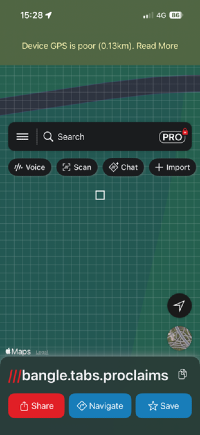
Step 10. A map appears with a white square showing the three-metre square on the ground that contains the grave you are looking for.
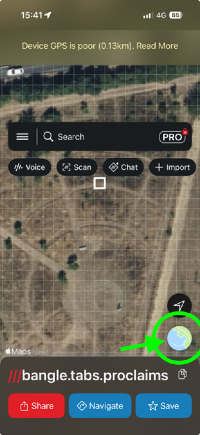
Step 11. To see the burial ground more clearly, tap the layers button (usually in a corner of the map shown here in the green circle). You see the familiar concentric rings and paths.
Please read
Your three words will locate you in the right area, not the exact spot. Each what3words square is about 3 metres by 3 metres. If you can't find the exact location of the grave, we may be able to mark the grave ahead of your visit.
Please email well in advance of your visit.
Email us at info@woodlandburialwestmill.co.uk
Alternatively, if you join us at one of the events held during the year at the burial ground, someone may be able to help you on the day.
Phone signal can be weak at the burial ground. If you can, open the app and search for the words before you leave home, so the map is ready.
If you don’t have a smartphone with apps, you can also type the three words into the what3words.com website on any computer connected to the internet.